Adding Parameters to Annotations Using Rewrite Actions
In this blog post, we will:
- Demonstrate searching and matching annotations
- Amen annotations using mustache templates
Sensei provides the ability to match problematic code patterns and then amend them to agreed implementations. In this example, I am using @Disabled without a parameter as the problematic code pattern.
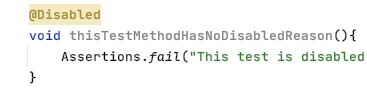
Disabled Test Annotation
Disabled tests without a specified reason can prove problematic over the long term because we forget why we disabled it.
@Disabled
void thisTestMethodHasNoDisabledReason(){
Assertions.fail("This test is disabled and should not run");
}
The risk is that, over time, the code base moves on, the disabled test is not updated in step with the purpose of the code and eventually becomes redundant and irrelevant, and potentially never re-enabled.
During code reviews, we will often point out that it is a good idea to add an explanatory description as the annotation parameter.
@Disabled ("Disabled to demonstrate adding a reason")
void thisTestMethodHasDisabledReason(){
Assertions.fail("This test is disabled and should not run");
}
A Sensei Recipe
We can write a recipe to detect when @Disabled is added without explanation and a Quick Fix that reminds us to add the actual reason explaining why we disabled it.
When I think about what I'm going to do, I have to:
- match the Disabled annotation without any parameters
- change the Disabled annotation to have a parameter with marker text "TODO: add a description here"
Create a Warning Recipe
I use Alt+Enter to Create a new Recipe.

Then add the basic descriptive text in the general information.

By making the rule a warning, any matching code is highlighted but not shown as a glaring error.
Find the Annotation
In the recipe editor, I change the Search to match an annotation.
This will highlight all annotations in the preview.

Having done that, I want to filter on the type of annotation.
I could just use Disabled but I fully qualify the class with the package so that it only matches the annotation from JUnit 5. Because the source code is shown in the preview, I can easily copy and paste this in from the actual code to avoid any typos.
I then want to match only annotations without Parameters, and I can use the GUI to do that.

i.e. Search:
search:
annotation:
type: "org.junit.jupiter.api.Disabled"
without:
parameters:
- {}
Create a Rewrite Quick Fix Action
For my QuickFix I will use a rewrite action.
I use the Show Variables functionality to show me the Mustache variables and preview the contents.

And then I add the extra code needed to create the place marker comment.

i.e. QuickFix:
availableFixes:
- name: "Add a todo comment parameter"
actions:
- rewrite:
to: "{{{ . }}}(\"TODO: add a description here\")"
target: "self"
Sensei in Action
We have created a short video showing the recipe creation process in action.
Summary
When building a rewrite Quick Fix, it is easier when we can search for the code element that we want to rewrite, because it is then the self entity we can act on.
In this example, I used a rewrite action to amend the Annotation. Rewrite is a general-purpose action that can apply to any code element and is a good default to explore.

Learn how to use Sensei to match problematic code patterns and then amend them to agreed implementations with examples of annotation matching.
Alan Richardson has more than twenty years of professional IT experience, working as a developer and at every level of the testing hierarchy from Tester through to Head of Testing. Head of Developer Relations at Secure Code Warrior, he works directly with teams, to improve the development of quality secure code. Alan is the author of four books including “Dear Evil Tester”, and “Java For Testers”. Alan has also created online training courses to help people learn Technical Web Testing and Selenium WebDriver with Java. Alan posts his writing and training videos on SeleniumSimplified.com, EvilTester.com, JavaForTesters.com, and CompendiumDev.co.uk.

Secure Code Warrior is here for your organization to help you secure code across the entire software development lifecycle and create a culture in which cybersecurity is top of mind. Whether you’re an AppSec Manager, Developer, CISO, or anyone involved in security, we can help your organization reduce risks associated with insecure code.
Book a demoAlan Richardson has more than twenty years of professional IT experience, working as a developer and at every level of the testing hierarchy from Tester through to Head of Testing. Head of Developer Relations at Secure Code Warrior, he works directly with teams, to improve the development of quality secure code. Alan is the author of four books including “Dear Evil Tester”, and “Java For Testers”. Alan has also created online training courses to help people learn Technical Web Testing and Selenium WebDriver with Java. Alan posts his writing and training videos on SeleniumSimplified.com, EvilTester.com, JavaForTesters.com, and CompendiumDev.co.uk.

In this blog post, we will:
- Demonstrate searching and matching annotations
- Amen annotations using mustache templates
Sensei provides the ability to match problematic code patterns and then amend them to agreed implementations. In this example, I am using @Disabled without a parameter as the problematic code pattern.
Disabled Test Annotation
Disabled tests without a specified reason can prove problematic over the long term because we forget why we disabled it.
@Disabled
void thisTestMethodHasNoDisabledReason(){
Assertions.fail("This test is disabled and should not run");
}
The risk is that, over time, the code base moves on, the disabled test is not updated in step with the purpose of the code and eventually becomes redundant and irrelevant, and potentially never re-enabled.
During code reviews, we will often point out that it is a good idea to add an explanatory description as the annotation parameter.
@Disabled ("Disabled to demonstrate adding a reason")
void thisTestMethodHasDisabledReason(){
Assertions.fail("This test is disabled and should not run");
}
A Sensei Recipe
We can write a recipe to detect when @Disabled is added without explanation and a Quick Fix that reminds us to add the actual reason explaining why we disabled it.
When I think about what I'm going to do, I have to:
- match the Disabled annotation without any parameters
- change the Disabled annotation to have a parameter with marker text "TODO: add a description here"
Create a Warning Recipe
I use Alt+Enter to Create a new Recipe.

Then add the basic descriptive text in the general information.

By making the rule a warning, any matching code is highlighted but not shown as a glaring error.

Find the Annotation
In the recipe editor, I change the Search to match an annotation.
This will highlight all annotations in the preview.

Having done that, I want to filter on the type of annotation.
I could just use Disabled but I fully qualify the class with the package so that it only matches the annotation from JUnit 5. Because the source code is shown in the preview, I can easily copy and paste this in from the actual code to avoid any typos.
I then want to match only annotations without Parameters, and I can use the GUI to do that.

i.e. Search:
search:
annotation:
type: "org.junit.jupiter.api.Disabled"
without:
parameters:
- {}
Create a Rewrite Quick Fix Action
For my QuickFix I will use a rewrite action.
I use the Show Variables functionality to show me the Mustache variables and preview the contents.

And then I add the extra code needed to create the place marker comment.

i.e. QuickFix:
availableFixes:
- name: "Add a todo comment parameter"
actions:
- rewrite:
to: "{{{ . }}}(\"TODO: add a description here\")"
target: "self"
Sensei in Action
We have created a short video showing the recipe creation process in action.
Summary
When building a rewrite Quick Fix, it is easier when we can search for the code element that we want to rewrite, because it is then the self entity we can act on.
In this example, I used a rewrite action to amend the Annotation. Rewrite is a general-purpose action that can apply to any code element and is a good default to explore.
In this blog post, we will:
- Demonstrate searching and matching annotations
- Amen annotations using mustache templates
Sensei provides the ability to match problematic code patterns and then amend them to agreed implementations. In this example, I am using @Disabled without a parameter as the problematic code pattern.
Disabled Test Annotation
Disabled tests without a specified reason can prove problematic over the long term because we forget why we disabled it.
@Disabled
void thisTestMethodHasNoDisabledReason(){
Assertions.fail("This test is disabled and should not run");
}
The risk is that, over time, the code base moves on, the disabled test is not updated in step with the purpose of the code and eventually becomes redundant and irrelevant, and potentially never re-enabled.
During code reviews, we will often point out that it is a good idea to add an explanatory description as the annotation parameter.
@Disabled ("Disabled to demonstrate adding a reason")
void thisTestMethodHasDisabledReason(){
Assertions.fail("This test is disabled and should not run");
}
A Sensei Recipe
We can write a recipe to detect when @Disabled is added without explanation and a Quick Fix that reminds us to add the actual reason explaining why we disabled it.
When I think about what I'm going to do, I have to:
- match the Disabled annotation without any parameters
- change the Disabled annotation to have a parameter with marker text "TODO: add a description here"
Create a Warning Recipe
I use Alt+Enter to Create a new Recipe.

Then add the basic descriptive text in the general information.

By making the rule a warning, any matching code is highlighted but not shown as a glaring error.

Find the Annotation
In the recipe editor, I change the Search to match an annotation.
This will highlight all annotations in the preview.

Having done that, I want to filter on the type of annotation.
I could just use Disabled but I fully qualify the class with the package so that it only matches the annotation from JUnit 5. Because the source code is shown in the preview, I can easily copy and paste this in from the actual code to avoid any typos.
I then want to match only annotations without Parameters, and I can use the GUI to do that.

i.e. Search:
search:
annotation:
type: "org.junit.jupiter.api.Disabled"
without:
parameters:
- {}
Create a Rewrite Quick Fix Action
For my QuickFix I will use a rewrite action.
I use the Show Variables functionality to show me the Mustache variables and preview the contents.

And then I add the extra code needed to create the place marker comment.

i.e. QuickFix:
availableFixes:
- name: "Add a todo comment parameter"
actions:
- rewrite:
to: "{{{ . }}}(\"TODO: add a description here\")"
target: "self"
Sensei in Action
We have created a short video showing the recipe creation process in action.
Summary
When building a rewrite Quick Fix, it is easier when we can search for the code element that we want to rewrite, because it is then the self entity we can act on.
In this example, I used a rewrite action to amend the Annotation. Rewrite is a general-purpose action that can apply to any code element and is a good default to explore.

Click on the link below and download the PDF of this resource.
Secure Code Warrior is here for your organization to help you secure code across the entire software development lifecycle and create a culture in which cybersecurity is top of mind. Whether you’re an AppSec Manager, Developer, CISO, or anyone involved in security, we can help your organization reduce risks associated with insecure code.
View reportBook a demoAlan Richardson has more than twenty years of professional IT experience, working as a developer and at every level of the testing hierarchy from Tester through to Head of Testing. Head of Developer Relations at Secure Code Warrior, he works directly with teams, to improve the development of quality secure code. Alan is the author of four books including “Dear Evil Tester”, and “Java For Testers”. Alan has also created online training courses to help people learn Technical Web Testing and Selenium WebDriver with Java. Alan posts his writing and training videos on SeleniumSimplified.com, EvilTester.com, JavaForTesters.com, and CompendiumDev.co.uk.
In this blog post, we will:
- Demonstrate searching and matching annotations
- Amen annotations using mustache templates
Sensei provides the ability to match problematic code patterns and then amend them to agreed implementations. In this example, I am using @Disabled without a parameter as the problematic code pattern.
Disabled Test Annotation
Disabled tests without a specified reason can prove problematic over the long term because we forget why we disabled it.
@Disabled
void thisTestMethodHasNoDisabledReason(){
Assertions.fail("This test is disabled and should not run");
}
The risk is that, over time, the code base moves on, the disabled test is not updated in step with the purpose of the code and eventually becomes redundant and irrelevant, and potentially never re-enabled.
During code reviews, we will often point out that it is a good idea to add an explanatory description as the annotation parameter.
@Disabled ("Disabled to demonstrate adding a reason")
void thisTestMethodHasDisabledReason(){
Assertions.fail("This test is disabled and should not run");
}
A Sensei Recipe
We can write a recipe to detect when @Disabled is added without explanation and a Quick Fix that reminds us to add the actual reason explaining why we disabled it.
When I think about what I'm going to do, I have to:
- match the Disabled annotation without any parameters
- change the Disabled annotation to have a parameter with marker text "TODO: add a description here"
Create a Warning Recipe
I use Alt+Enter to Create a new Recipe.

Then add the basic descriptive text in the general information.

By making the rule a warning, any matching code is highlighted but not shown as a glaring error.

Find the Annotation
In the recipe editor, I change the Search to match an annotation.
This will highlight all annotations in the preview.

Having done that, I want to filter on the type of annotation.
I could just use Disabled but I fully qualify the class with the package so that it only matches the annotation from JUnit 5. Because the source code is shown in the preview, I can easily copy and paste this in from the actual code to avoid any typos.
I then want to match only annotations without Parameters, and I can use the GUI to do that.

i.e. Search:
search:
annotation:
type: "org.junit.jupiter.api.Disabled"
without:
parameters:
- {}
Create a Rewrite Quick Fix Action
For my QuickFix I will use a rewrite action.
I use the Show Variables functionality to show me the Mustache variables and preview the contents.

And then I add the extra code needed to create the place marker comment.

i.e. QuickFix:
availableFixes:
- name: "Add a todo comment parameter"
actions:
- rewrite:
to: "{{{ . }}}(\"TODO: add a description here\")"
target: "self"
Sensei in Action
We have created a short video showing the recipe creation process in action.
Summary
When building a rewrite Quick Fix, it is easier when we can search for the code element that we want to rewrite, because it is then the self entity we can act on.
In this example, I used a rewrite action to amend the Annotation. Rewrite is a general-purpose action that can apply to any code element and is a good default to explore.
Table of contents
Alan Richardson has more than twenty years of professional IT experience, working as a developer and at every level of the testing hierarchy from Tester through to Head of Testing. Head of Developer Relations at Secure Code Warrior, he works directly with teams, to improve the development of quality secure code. Alan is the author of four books including “Dear Evil Tester”, and “Java For Testers”. Alan has also created online training courses to help people learn Technical Web Testing and Selenium WebDriver with Java. Alan posts his writing and training videos on SeleniumSimplified.com, EvilTester.com, JavaForTesters.com, and CompendiumDev.co.uk.

Secure Code Warrior is here for your organization to help you secure code across the entire software development lifecycle and create a culture in which cybersecurity is top of mind. Whether you’re an AppSec Manager, Developer, CISO, or anyone involved in security, we can help your organization reduce risks associated with insecure code.
Book a demoDownloadResources to get you started
The Power of OpenText Application Security + Secure Code Warrior
OpenText Application Security and Secure Code Warrior combine vulnerability detection with AI Software Governance and developer capability. Together, they help organizations reduce risk, strengthen secure coding practices, and confidently adopt AI-driven development.
Secure Code Warrior corporate overview
Secure Code Warrior is an AI Software Governance platform designed to enable organizations to safely adopt AI-driven development by bridging the gap between development velocity and enterprise security. The platform addresses the "Visibility Gap," where security teams often lack insights into shadow AI coding tools and the origins of production code.
Secure code training topics & content
Our industry-leading content is always evolving to fit the ever changing software development landscape with your role in mind. Topics covering everything from AI to XQuery Injection, offered for a variety of roles from Architects and Engineers to Product Managers and QA. Get a sneak peek of what our content catalog has to offer by topic and role.
Cyber Resilience Act (CRA) Aligned Learning Pathways
SCW supports Cyber Resilience Act (CRA) readiness with CRA-aligned Quests and conceptual learning collections that help development teams build the Secure by Design, SDLC, and secure coding skills aligned with the CRA’s secure development principles.
Resources to get you started
Observe and Secure the ADLC: A Four-Point Framework for CISOs and Development Teams Using AI
While development teams look to make the most of GenAI’s undeniable benefits, we’d like to propose a four-point foundational framework that will allow security leaders to deploy AI coding tools and agents with a higher, more relevant standard of security best practices. It details exactly what enterprises can do to ensure safe, secure code development right now, and as agentic AI becomes an even bigger factor in the future.