Rewrite 액션을 사용하여 어노테이션에 매개변수 추가하기

이 블로그 게시물에서는 다음 내용을 다룹니다:
- 어노테이션 검색 및 매칭 시연
- 머스태시(mustache) 템플릿을 사용한 어노테이션 수정
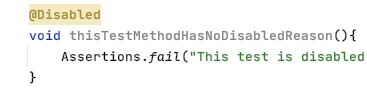
Sensei는 문제 있는 코드 패턴을 찾아내고 이를 합의된 구현 방식으로 수정하는 기능을 제공합니다. 이 예제에서는 매개변수가 없는 @Disabled를 문제 있는 코드 패턴으로 사용하겠습니다.
비활성화된 테스트 어노테이션
이유가 명시되지 않은 비활성화된 테스트는 시간이 지나면 왜 비활성화했는지 잊어버리게 되어 장기적으로 문제가 될 수 있습니다.
@Disabled
void thisTestMethodHasNoDisabledReason(){
Assertions.fail("이 테스트는 비활성화되었으며 실행되어서는 안 됩니다");
}
시간이 흐르면서 코드 베이스가 변경됨에 따라 비활성화된 테스트가 코드의 목적과 맞지 않게 업데이트되지 않고, 결국 불필요하고 무관한 코드가 되어 영영 다시 활성화되지 않을 위험이 있습니다.
코드 리뷰 중에 어노테이션 매개변수로 설명 문구를 추가하는 것이 좋다는 점을 자주 지적하게 됩니다.
@Disabled ("이유 추가를 보여주기 위해 비활성화됨")
void thisTestMethodHasDisabledReason(){
Assertions.fail("이 테스트는 비활성화되었으며 실행되어서는 안 됩니다");
}
Sensei 레시피
설명 없이 @Disabled가 추가된 경우를 감지하는 레시피와, 비활성화 이유를 추가하도록 상기시켜 주는 빠른 수정(Quick Fix) 기능을 작성할 수 있습니다.
수행할 작업을 고려할 때 다음 단계를 거쳐야 합니다:
- 매개변수가 없는 Disabled 어노테이션 매칭
- "TODO: 여기에 설명을 추가하세요"라는 마커 텍스트가 포함된 매개변수를 갖도록 Disabled 어노테이션 변경
경고 레시피 생성
Alt+Enter를 사용하여 새 레시피를 생성합니다.

그런 다음 일반 정보 섹션에 기본적인 설명 텍스트를 추가합니다.

규칙을 경고로 설정하면 일치하는 코드가 강조 표시되지만, 눈에 띄는 오류로 나타나지는 않습니다.
어노테이션 찾기
레시피 편집기에서 검색 설정을 변경하여 어노테이션과 일치하도록 합니다.
이렇게 하면 미리보기에서 모든 어노테이션이 강조 표시됩니다.

그 후, 어노테이션 유형별로 필터링하려고 합니다.
단순히 Disabled를 사용할 수도 있지만, JUnit 5의 어노테이션과만 일치하도록 패키지를 포함한 전체 클래스 경로를 지정합니다. 미리보기 창에 소스 코드가 표시되므로, 실제 코드에서 복사하여 붙여넣으면 오타를 방지할 수 있습니다.
그런 다음 매개변수가 없는 어노테이션만 찾으려고 하며, GUI를 사용하여 이를 수행할 수 있습니다.

예: 검색:
search:
annotation:
type: "org.junit.jupiter.api.Disabled"
without:
parameters:
- {}
Rewrite Quick Fix 액션 생성
QuickFix를 위해 rewrite 액션을 사용하겠습니다.
변수 표시(Show Variables) 기능을 사용하여 Mustache 변수를 확인하고 내용을 미리 봅니다.

그런 다음 플레이스홀더 주석을 만드는 데 필요한 추가 코드를 삽입합니다.

예: QuickFix:
availableFixes:
- name: "Add a todo comment parameter"
actions:
- rewrite:
to: "{{{ . }}}(\"TODO: add a description here\")"
target: "self"
Sensei 활용하기
레시피 생성 과정을 보여주는 짧은 영상을 준비했습니다.
요약
Rewrite Quick Fix를 만들 때는 수정하려는 코드 요소를 먼저 검색하는 것이 좋습니다. 그래야 해당 요소를 self 엔티티로 지정하여 작업할 수 있기 때문입니다.
이 예제에서는 rewrite 액션을 사용하여 어노테이션을 수정했습니다. Rewrite는 모든 코드 요소에 적용할 수 있는 범용 액션이며, 처음 시도해 보기에 좋은 기본 기능입니다.
배포 전 AI 기반 개발 거버넌스 확보
AI 기반 위험을 측정하고, 커밋 시점에 보안 코딩 정책을 적용하며, SDLC 전반에 걸쳐 안전한 소프트웨어 제공 속도를 높이세요.
더 많은 블로그 살펴보기
보안 코딩, AI 거버넌스, 소프트웨어 리스크 관리에 관한 전문가 콘텐츠를 확인해 보세요.
%252520%252520(3).avif)
Supercharged Security Awareness: How Tournaments are Inspiring Developers at Erste Group
Lorem ipsum dolor sit amet, consectetur adipiscing elit. Suspendisse varius enim in eros elementum tristique. Duis cursus, mi quis viverra ornare, eros dolor interdum nulla, ut commodo diam libero vitae erat. Aenean faucibus nibh et justo cursus id rutrum lorem imperdiet. Nunc ut sem vitae risus tristique posuere.

Security as culture: How Blue Prism cultivates world-class secure developers
Learn how Blue Prism, the global leader in intelligent automation for the enterprise, used Secure Code Warrior's agile learning platform to create a security-first culture with their developers, achieve their business goals, and ship secure code at speed


.avif)
배포 전 AI 기반 개발 보안 확보
소프트웨어 개발 수명 주기 전반에서 개발자 리스크를 파악하고, 정책을 시행하며, 취약점을 예방하세요.
