Improving A Personal Programming Process Using Sensei

For this post, I've recreated a 'bad' coding approach that I used when I was learning JUnit, and will demonstrate how to convert the "bad'pattern to an agreed, and "better', coding pattern using Sensei.
When I was learning JUnit, I could only keep so much in my head at any one time. I constantly forgot how to skip tests when they were not working.
If we are working in a team then we can use code reviews on pull requests to help enforce coding styles. And we can shorten the feedback cycle when pair programming with a more experienced programmer.
We can also augment our process with tooling and have the tools prompt us to do the right thing. Thoughtworks described this as "tools over rules," in their Technology Radar listing for Sensei, to: "make it easy to do the right thing over applying checklist-like governance rules and procedures"
Disabling a JUnit Test
Ideally, I would, as we all know, use the @Disabled annotation and write:
@Disabled
@Test
void canWeAddTwoNumbers(){
Assertions.fail("this test was skipped and should not run");
}
But, when learning, I had to train myself to use @Disabled.
When I forgot how to disable a Test method I would remove the @Test annotation and rename the test:
class SkipThisTest {
void SKIPTHIScanWeAddTwoNumbers(){
Assertions.fail("this test was skipped and should not run");
}
}
It wasn't good, but it got the job done. I didn't have something like Sensei to help me remember and so I fell into using poor coding patterns.
The tasks I've taken on board for this post are to:
- Create a rule which finds methods that have been 'skipped' or 'disabled' by renaming the method.
- Create a QuickFix to rename the method and add both an @Test and @Disabled annotation.
Recipe Settings
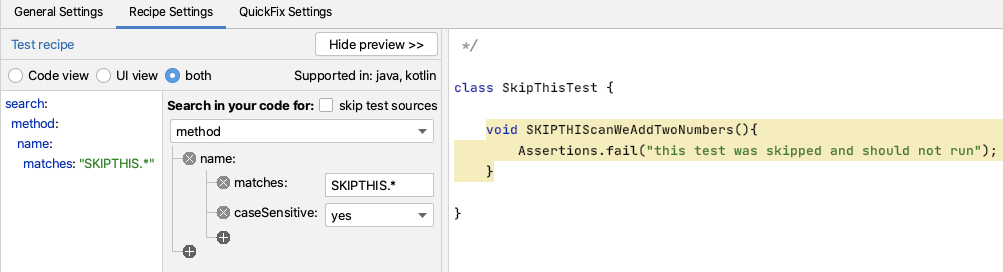
The first step I take with Sensei is to "add new recipe" and search for the coding pattern I want the recipe to act on.
Name: JUnit: Make @Disabled @Test from SKIPTHIS
Short Description: Stop naming methods SKIPTHIS, use @Disabled @Test instead
And my search is very simple. I use a basic regex to match the method name.
search:
method:
name:
matches: "SKIPTHIS.*"
QuickFix Settings
The QuickFix is a little more complicated because it will rewrite the code, and I'll use a few steps to achieve my final code.
I want to:
- add an @Test annotation to the method
- add an @Disabled annotation to the method
- amend the method name
Adding the annotations is simple enough using the addAnnotation fix. If I use a fully qualified name for the annotation then Sensei will automatically add the imports for me.
availableFixes:
- name: "Add @Disabled and @Test Annotation"
actions:
- addAnnotation:
annotation: "@org.junit.jupiter.api.Test"
- addAnnotation:
annotation: "@org.junit.jupiter.api.Disabled"
The actual renaming seems a little more complicated but I'm just using a regex replacement, and the generic way to do this with Sensei is to use sed in a rewrite action.
Because the rewrite actions are Mustache templates, Sensei has some functional extensions in the template mechanism. A function is represented with {{#...}} so for sed the function is {{#sed}}. The function takes two comma-separated arguments.
The first argument is the sed statement:
- s/(.*) SKIPTHIS(.*)/$1 $2/
The second argument is the String to apply the sed statement to, which in this case is the method itself, and this is represented in the Mustache variables as:
- {{{.}}}
Giving me the rewrite action of:
- rewrite:
to: "{{#sed}}s/(.*) SKIPTHIS(.*)/$1 $2/,{{{.}}}{{/sed}}"
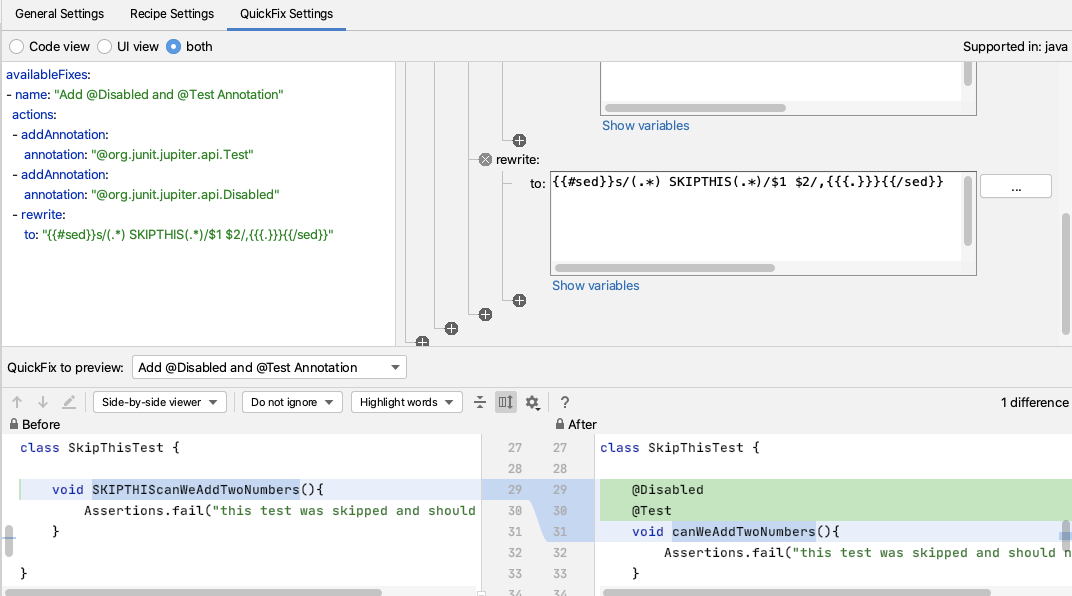
The sed implementation requires that when the arguments themselves contain commas, they are wrapped with {{#encodeString}} and {{/encodeString}} - e.g. {{#encodeString}}{{{.}}}{{/encodeString}}
Reverse Recipe
Since this is an example, and we might want to use this in demos, I wanted to explore how to reverse out the above change using a Sensei recipe.
Thinking it through I want to find a method annotated with @Disabled but only in the class SkipThisTest where I do the demo:
Name: JUnit: demo in SkipThisTest remove @Disabled and revert to SKIPTHIS
Short Description: remove @Disabled and revert to SKIPTHIS for demo purposes in the project
Level: warning
The Recipe Settings Search is very simple, matching the annotation in a specific class.
search:
method:
annotation:
type: "Disabled"
in:
class:
name: "SkipThisTest"
To avoid making the code look like it is an error I defined the general setting on the recipe to be a Warning. Warnings are shown with highlights in the code and it doesn't make the code look like it has a major problem.
For the Quick fix, since we have matched the method, I use the rewrite action and populate the template using the variables.
availableFixes:
- name: "Remove Disabled and rename to SKIPTHIS..."
actions:
- rewrite:
to: "{{{ returnTypeElement }}} SKIPTHIS{{{ nameIdentifier }}}{{{ parameterList\
\ }}}{{{ body }}}"
I add every variable except the modifier (since I want to get rid of the annotations) and add the SKIPTHIS text into the template.
This fix has the weakness that by removing the modifiers, I remove any other annotations as well.
Add another Action
I can add another named fix, to give me a choice when the alt+enter is used to display the QuickFix.
availableFixes:
- name: "Remove Disabled and rename to SKIPTHIS..."
actions:
- rewrite:
to: "{{{ returnTypeElement }}} SKIPTHIS{{{ nameIdentifier }}}{{{ parameterList\
\ }}}{{{ body }}}"
target: "self"
- name: "Remove Disabled, keep other annotations, and rename to SKIPTHIS..."
actions:
- rewrite:
to: "{{#sed}}s/(@Disabled\n.*@Test)//,{{{ modifierList }}}{{/sed}}\n\
{{{ returnTypeElement }}} SKIPTHIS{{{ nameIdentifier }}}{{{ parameterList\
\ }}}{{{ body }}}"
target: "self"
Here, I added an additional line in the new Quick Fix.
{{#sed}}s/(@Disabled\n.*@Test)//,{{{ modifierList }}}{{/sed}}
This takes the modifier list, encodes it as a string, then uses sed to remove the line with @Disabled from the string, but leaves all other lines in the modifier, i.e. it leaves all other annotations alone.
NOTE: Remember to add the "," in the sed, otherwise you will see a comment added to your preview. This is how Sensei alerts you to syntax errors in the sed command.
/* e.g: {{#sed}}s/all/world/,helloall{{/sed}} */
Nested sed calls
I was lucky that I could match both the @Disabled and @Test in a single search and replace.
If the code is more complicated and I wanted to have a sequence of sed commands then I can do that by nesting them:
{{#sed}}s/@Test//,{{#sed}}s/@Disabled\n//,{{{ modifierList }}}{{/sed}}{{/sed}}
In the above example, I apply the @Test replacement to the results of applying the @Disabled replacement on the {{{ modifierList }}}.
Summary
sed is a very flexible way to achieve code rewriting and it is possible to nest the sed function calls for complicated rewrite conditions.
Recipes like this often end up being temporary because we are using them to improve our programming process, and once we have built up the muscle memory and no longer use the poor programming pattern we can remove or disable them in the Cookbook.
---
You can install Sensei from within IntelliJ using "Preferences \ Plugins" (Mac) or "Settings \ Plugins" (Windows) then just search for "sensei secure code".
All the code for this blog post can be found on GitHub in the `junitexamples` module of our blog examples repository https://github.com/SecureCodeWarrior/sensei-blog-examples
배포 전 AI 기반 개발 거버넌스 확보
AI 기반 위험을 측정하고, 커밋 시점에 보안 코딩 정책을 적용하며, SDLC 전반에 걸쳐 안전한 소프트웨어 제공 속도를 높이세요.
더 많은 블로그 살펴보기
보안 코딩, AI 거버넌스, 소프트웨어 리스크 관리에 관한 전문가 콘텐츠를 확인해 보세요.





모델이 가장 작은 보안 레버라면, 실제로 AI 생성 코드를 더 안전하게 만드는 요소는 무엇일까요?
올해 초 당사는 SCW AI 신뢰 지수(SCW AI Trust Index)를 발표하고, RMIT 대학교와 협력하여 OpenAI, Anthropic, Google 등의 주요 AI 모델 16개를 평가했습니다. 총 1,760개의 코드베이스를 생성하여 분석한 결과, 각 코드베이스에서 평균 15개의 취약점이 발견되었습니다. 독자적인 방법론을 적용한 이 데이터를 통해 당사는 모델과 프레임워크에 따라 보안 위험을 예측할 수 있다는 사실을 마침내 규명해 냈습니다.

배포 전 AI 기반 개발 보안 확보
소프트웨어 개발 수명 주기 전반에서 개발자 리스크를 파악하고, 정책을 시행하며, 취약점을 예방하세요.
